
To speed up WooCommerce, first identify which part of the shopping journey is slow. A cached product page, an add-to-cart request and a checkout calculation do different work. Improving one does not automatically improve the others.
Start with a repeatable baseline, fix the largest measured bottleneck, then repeat the same tests. This guide covers diagnosis, caching, checkout, catalog assets and database maintenance, with a worksheet for comparing results. For the wider site, also see our WordPress speed optimization guide.
1. Diagnose the slow part of your store
Choose a busy category, a typical product and a product with variations. Test them alongside the cart, checkout and any slow order-management screen. Record the URL or action, device, login state and cart contents so you can reproduce the result.
| What feels slow? | Investigate first |
|---|---|
| Public product or category page | Document response time, cache status, the main image and scripts that delay rendering. |
| Filters, variations or add to cart | The request triggered by the action, its server time and the JavaScript work before the interface updates. |
| Shipping or payment at checkout | Repeated requests, shipping and tax integrations, gateway scripts and server-side callbacks. |
| Order screens or scheduled jobs | Slow queries, failing background tasks and server capacity during the affected period. |
Use the browser’s Network panel to separate waiting for the first response byte (TTFB) from downloading and rendering the page. A slow response needs a different investigation from a large product image that arrives late. On a staging copy, Query Monitor can help attribute database queries and HTTP requests to the code responsible. Use those observations to choose what to test next.
PageSpeed Insights separates lab diagnostics from real-user data. Use lab runs to investigate loading issues. Where available, field LCP, INP and CLS describe loading, responsiveness and visual stability over the previous 28 days. Check whether the report represents the URL or the whole origin; a low-traffic page may have no field data.
Run at least three comparable checks and keep the median. Record cold and warm cache results separately, and test both a fresh visitor and a shopper with items in the cart. A homepage score alone says little about the time it takes to complete checkout.
2. Cache public pages without caching the shopper’s session
Page caching can reuse a public page response instead of rebuilding it for every visit. Start with anonymous catalog traffic, then verify the exclusions at every layer: WordPress plugin, hosting cache and CDN. An exclusion in one layer does not establish what the others do.
Follow WooCommerce’s cache configuration guidance: cart, checkout and My Account must remain dynamic. Use the store’s actual page URLs, including translated or customized slugs. The cache must also respect WooCommerce sessions, cart cookies, add-to-cart requests and customer-specific API responses. Avoid a blanket rule that caches every HTML response.
Persistent object caching is a separate mechanism: it can reuse data objects between requests, including requests that cannot use a full-page cache. Discuss a supported setup with your host and measure it against the same workload. Installing several caching plugins with overlapping responsibilities makes troubleshooting harder.
Validate the configuration with two isolated browser sessions. Add different products in each, change quantities, apply a coupon and sign in and out. Each session must retain its own cart, account data and correct totals. Also check that stock and price updates appear after the relevant cache is cleared.
3. Investigate checkout as an interactive workflow
A checkout can load quickly and still pause when a shopper changes their address or selects shipping. In the Network panel, follow one action at a time and identify the slow request. Depending on the checkout implementation, this may involve WooCommerce AJAX requests or the Store API.
- Shipping and tax: check whether changing an address triggers repeated calculations or waits on an external service. Compare the timing with server logs before changing providers or settings.
- Payment: inspect gateway scripts, errors and callbacks. Test supported payment methods with the gateway’s sandbox on staging, including a declined payment and a retry.
- Extensions: on staging, compare the affected action with one suspected extension disabled at a time. Keep a record of the result so you can distinguish a cause from normal timing variation.
- JavaScript optimization: check every delay, defer or unload rule against cart updates and checkout. Exclude required commerce scripts when an optimization breaks behavior; do not disable checkout code simply because a report flags its size.
Complete a test order and verify the resulting order status, stock change and confirmation. Test guest and account checkout if the store offers both. Check the actual mobile journey, including variation selection, coupons and validation errors. A faster interaction is useful only when the purchase still completes correctly.
4. Reduce the work on product and category pages
Inspect the largest image visible on a typical mobile product page. Serve an appropriately sized, compressed image and check that the browser can discover it early. Lazy-load images farther down the page; avoid automatically lazy-loading the main image that the shopper is waiting to see.
On category pages, review the number of products and images loaded at once. Compare a practical page size with the current layout. For variable products and filtered catalogs, test realistic combinations rather than only an empty category or a simple product.
Review sliders, chat widgets, tracking tags and other third-party scripts by purpose and measured cost. Load a feature only where it is needed, then check that consent, analytics and shopping behavior still work. WooCommerce’s store performance guidance provides further context for hosting, caching and asset optimization.
5. Choose geolocation to match the store’s needs
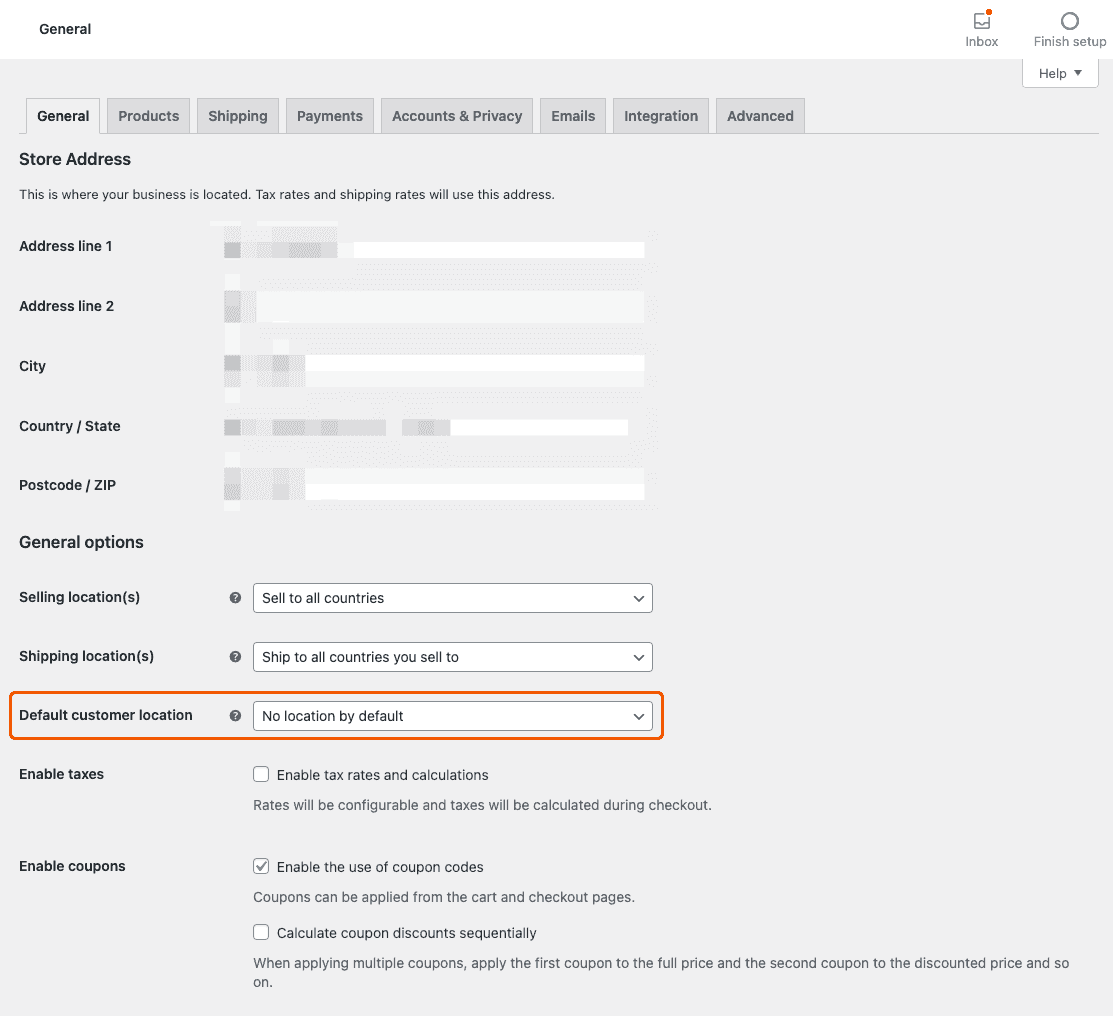
In WooCommerce → Settings → General → Default customer location, choose how the store establishes a visitor’s initial location. This affects default shipping and tax calculations. Selling to one country does not necessarily make location irrelevant, especially where regional rates differ.
If the shop country is an appropriate starting assumption, consider that setting. “No location by default” waits for an address before calculating shipping and taxes. If the store needs geolocation alongside page caching, review the “Geolocate (with page caching support)” option and its URL behavior in the official general settings documentation.
After a change, test the displayed prices and shipping estimates for representative customer locations. Treat this as a configuration decision to validate, not a guaranteed speed improvement.
6. Maintain the database and investigate background jobs
Before database changes, take a restorable backup and test the operation on staging. Identify what is growing and which queries are slow. A large table is a clue, not proof that its contents should be deleted.
Expired transients and obsolete data from removed plugins may be cleanup candidates, but confirm ownership and retention needs first. Do not bulk-delete orders, customer records, active sessions or unfamiliar tables.
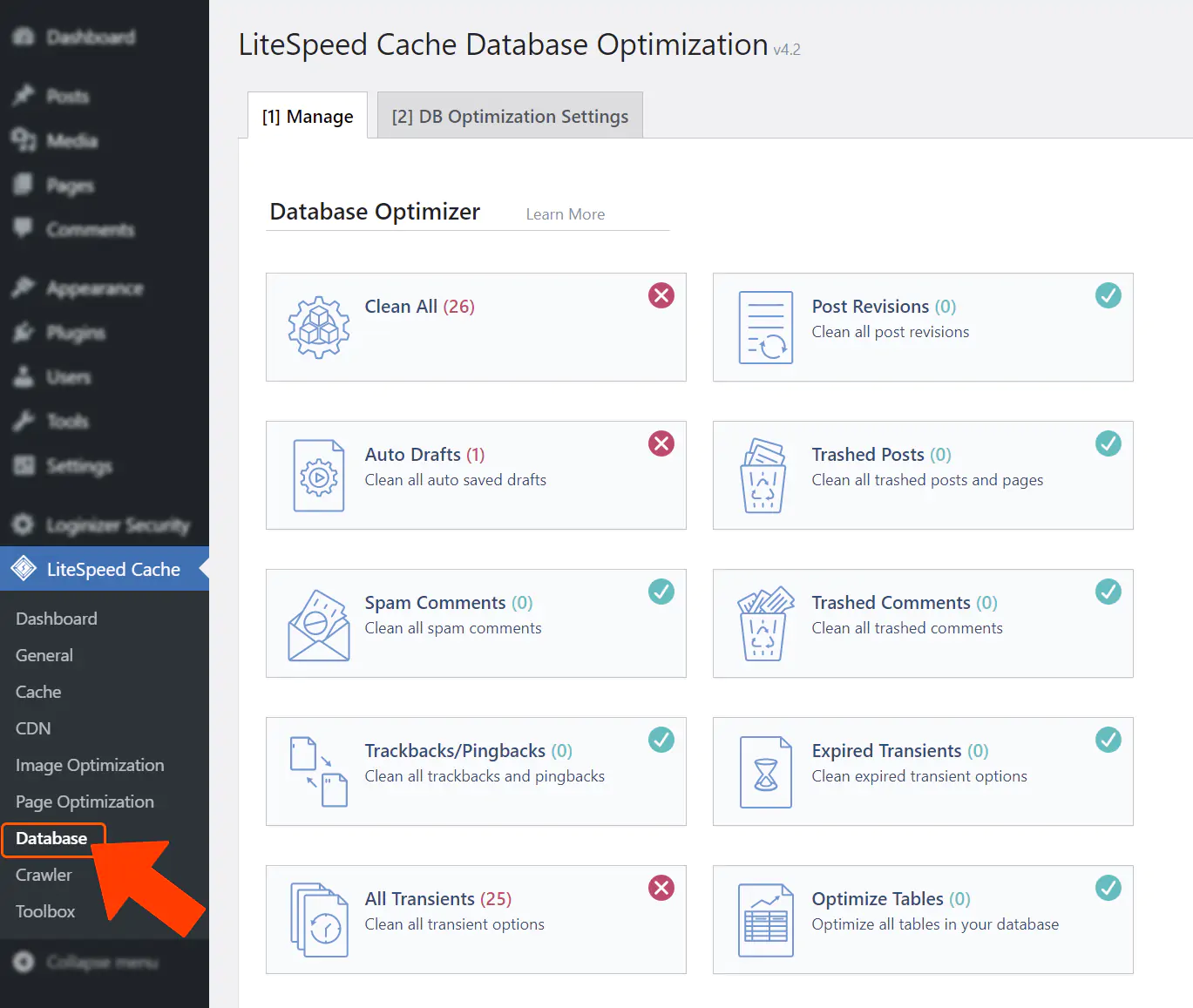
Table optimization or a storage-engine conversion should answer a diagnosed problem. Ask the database administrator or host to assess locking, disk space and recovery before running those operations on a busy store.
Also inspect WooCommerce → Status → Scheduled Actions. Repeated failures or overdue work can point to an extension error, an unavailable service or a scheduling problem. Read the action logs and identify the owner before retrying or removing jobs. Some support payments and other essential store operations; an empty queue is not the goal. See WooCommerce’s scheduled actions documentation.
7. Check HPOS compatibility before switching order storage
High-Performance Order Storage (HPOS) stores orders in dedicated WooCommerce tables. It is enabled by default for new installations from WooCommerce 8.2 onward; an older store may still use WordPress posts storage. It addresses order storage, so do not assume it will fix a slow product image or catalog filter.
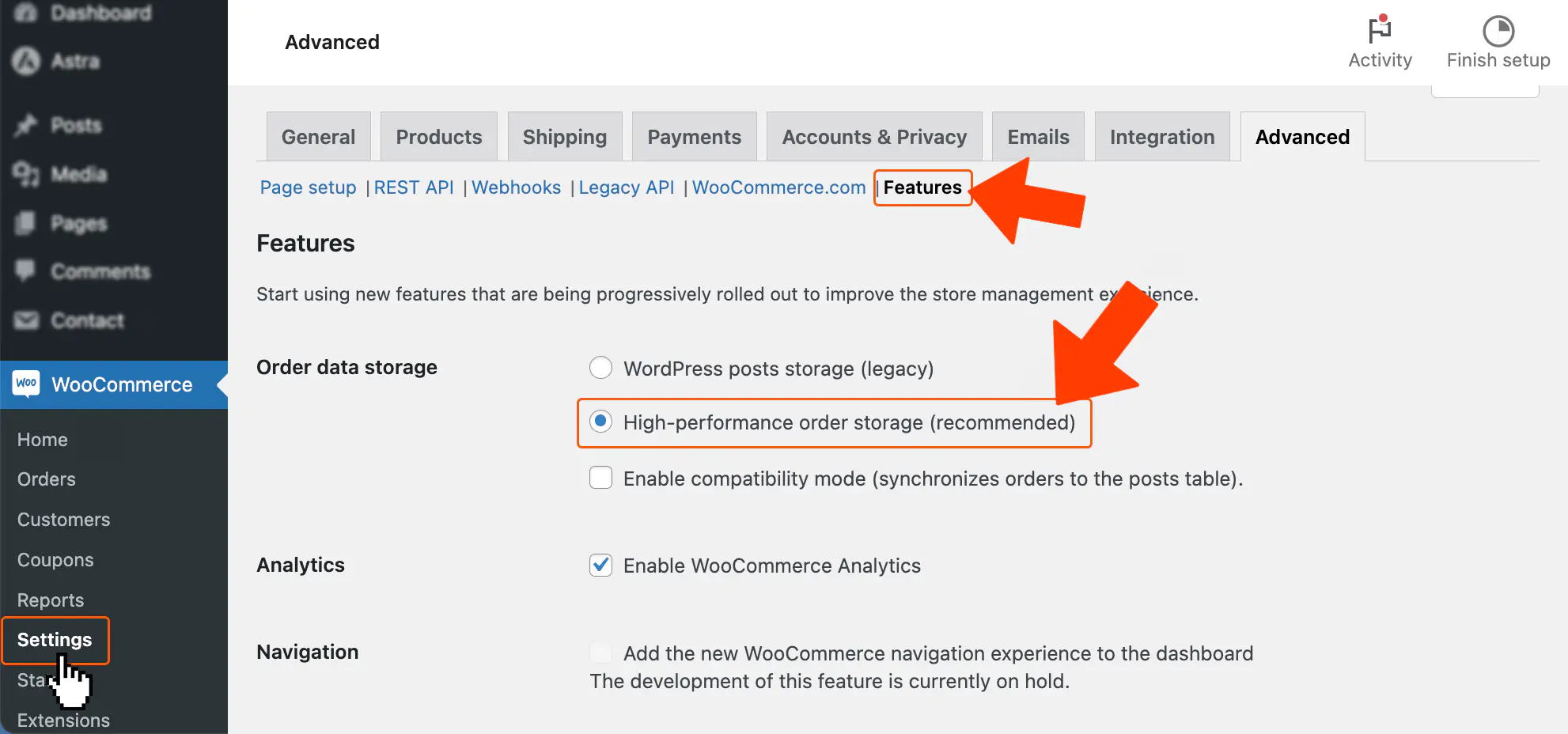
For an existing store, review WooCommerce → Settings → Advanced → Features and follow the official HPOS migration procedure. Check extension compatibility, back up the database, enable the required synchronization and wait for it to finish before switching the authoritative storage. Keep extensions that use custom post types active during migration, as the documentation requires.
Rehearse the change on staging. Validate existing orders, new test orders and the integrations the business relies on. Resolve compatibility warnings before making the production switch.
8. Add indexes only for a measured query problem
Use query profiling to identify slow, repeated database work and the extension or theme responsible. Inspect the query plan and existing indexes before adding more. Extra indexes can help selected reads, but they also require storage and maintenance when data changes.
Do not install an indexing plugin as a universal WooCommerce fix. Have the proposed change reviewed for the tables and storage mode the store actually uses, test it on a representative copy and compare the affected request again. Remove profiling overhead before taking the final comparison measurements.
9. Measure before and after, then repeat the purchase journey
Change one thing at a time. Use the same URLs, device profile, network conditions, cart contents and login state for both sets of measurements. Keep cache hits and misses in separate rows. This worksheet is a template for your store’s results, not a claimed benchmark.
| Test | Record | Before | After |
|---|---|---|---|
| Product page, mobile, anonymous | Median TTFB and lab LCP in milliseconds; cache state | Measure | Measure |
| Category or filter interaction | Time until updated results are usable; result correctness | Measure | Measure |
| Add to cart | Request duration; visible cart update and correct quantity | Measure / check | Measure / check |
| Checkout address or shipping change | Time until totals settle; correct shipping and tax | Measure / check | Measure / check |
| Sandbox order | Payment outcome, order status, stock and confirmation | Pass / fail | Pass / fail |
| Real-user experience, when available | Field LCP, INP and CLS; URL/origin scope and date range | Record | Review later |
Keep the raw timings and a short change log. A small difference between individual runs may be ordinary variation; look for a repeatable improvement in the affected action. Real-user metrics use a rolling collection window, so they will not fully reflect a deployment immediately.
Once the change is live, monitor errors and completed purchases alongside performance. If the bottleneck remains in uncached requests, use query traces, external-call timings and server resource data to decide whether the next step is code, configuration or hosting capacity.
If you need help diagnosing and improving your store, our WordPress Speed Optimization service can investigate WooCommerce bottlenecks and test targeted changes without requiring you to change hosting providers.
Once the performance work is complete, plan how to keep the store updated and backed up. Our WordPress maintenance plan includes daily external backups; busy stores may need a more frequent schedule agreed separately.