
FlyingPress stores an HTML copy of public WordPress pages and brings CSS, JavaScript and image settings together. It suits news sites, blogs and stores that want to manage page caching and the Cloudflare integration from WordPress. We use that integration on HangarX News. The screenshots in this guide show the site's live settings panel.
This guide contains an affiliate link. FastWeb may earn a commission if you buy through it.
FlyingPress or LiteSpeed Cache?
Choose one page-cache plugin. If LiteSpeed Cache works well on your host and you have tested its exclusions, keep it. If you prefer to manage WordPress and Cloudflare caching from FlyingPress, disable the LiteSpeed Cache plugin before turning FlyingPress on. You can still use LiteSpeed as your web server.
Page caching stores HTML. Object caching, such as Redis where available, stores data WordPress needs to retrieve again. Check with your host which tool controls each layer, particularly if your plan includes managed server-side page caching.
Initial setup
- On staging, note which plugin and CDN rules handle caching. Measure the homepage and a representative page using the same device and location you will use for the follow-up test.
- Disable the previous page-cache plugin, review any rules it left behind and activate FlyingPress. Check navigation, search, forms and content that depends on a user session.
- Enable CSS and JavaScript optimizations one at a time. Retest menus, ads, video players and analytics after each change. If something breaks, reverse the last setting and clear the cache before testing again.
How to connect FlyingPress to Cloudflare
- Make sure the domain's DNS record is proxied through Cloudflare. Review any existing HTML cache rules and disable APO if it was active before enabling the integration.
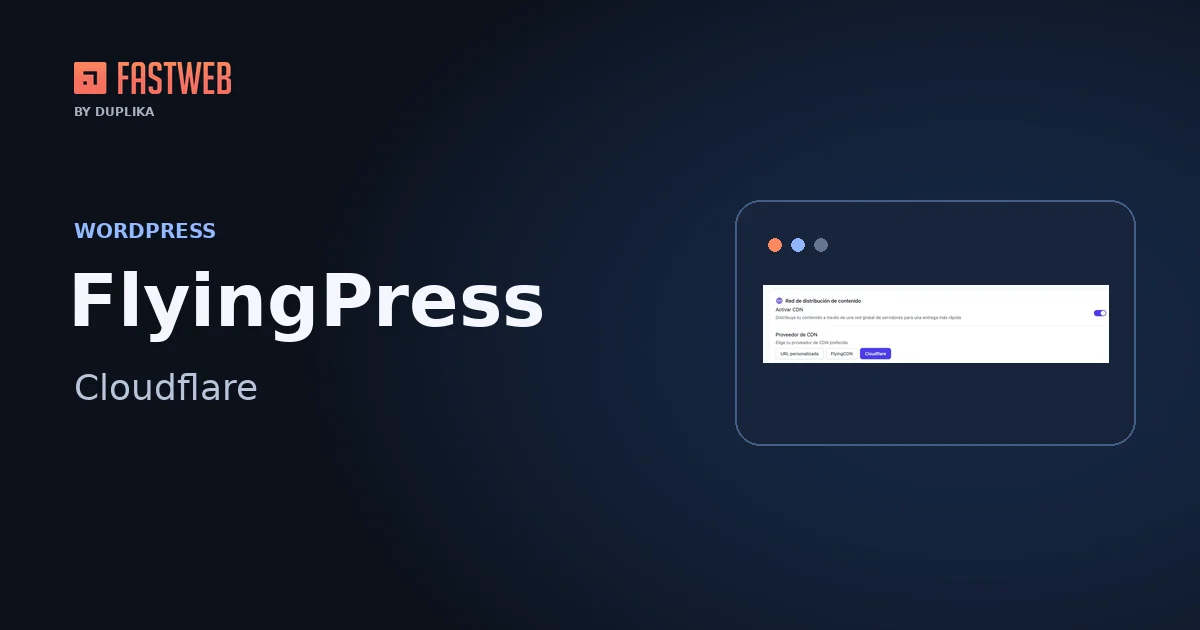
- Open CDN in FlyingPress, enable it and select Cloudflare. Follow the official instructions to connect the zone. If you use an API token, restrict it to the site's zone and use the permissions listed by FlyingPress.
- Enable Page Caching in the integration. FlyingPress can synchronize exclusions and purge Cloudflare's cached HTML when content changes. The integration also works on Cloudflare's free plan.

To check it, open a public page while logged out. In your browser's
Network panel, select the HTML document request and look for
cf-cache-status. A HIT means Cloudflare served the page from its cache.
An initial MISS can be normal. Repeat the request from the same logged-out session.
We observed cf-cache-status: HIT on the public HangarX News homepage. That check
covers one URL and gives no before-and-after measurement.
What to exclude from caching
Review pages that change for each visitor or show live information. The Caching panel lets you exclude pages, bypass cache for specific cookies and decide which URL parameters need a separate cached version.

On a news site, check the homepage and category page after a normal publishing update. Also test mobile navigation, search and ads. Compare the same URLs under similar conditions and distinguish the first request from repeat visits.
What to check on WooCommerce
FlyingPress automatically excludes Cart, Checkout and My Account. Check your store's actual routes and any custom checkout. On staging, add a product, check the cart counter from another page, change the quantity and complete a test order. If the counter stays stale, check how the theme updates it before bypassing cache for every session with items in the cart.
When FlyingPress is worth it
Consider FlyingPress if you want one place to optimize WordPress and serve cached HTML through Cloudflare. If LiteSpeed Cache already works well for you, identify the problem a switch would solve before changing plugins.
Official Cloudflare setup · Optimization plugin compatibility · WooCommerce compatibility